Quick answer: Make standard pins 1000 x 1500 pixels, which is a 2:3 ratio. Pinterest recommends this size and warns that pins taller than 2:3 may get cut off in the feed. Upload a PNG or JPEG under 20 MB on desktop. Free SnapyBiz Canva pin templates already come at 1000 x 1500.

Pinterest shows pins in a grid of tall columns. A pin that fits the column looks clean. A pin that is too tall gets trimmed, and a square one takes up less space than it could. Getting the size right is the easiest fix you can make.
What is the best size for a pin?
Pinterest’s product specs recommend a 2:3 aspect ratio, or 1000 x 1500 pixels, for standard image pins. Use that size for every new pin unless you have a reason not to.
| Spec | Standard image pin |
|---|---|
| Recommended size | 1000 x 1500 pixels |
| Aspect ratio | 2:3 (width to height) |
| File type | PNG or JPEG |
| Max file size | 20 MB on desktop, 32 MB in the app |
| Title | Up to 100 characters. The first 40 may show in feeds |
| Description | Up to 800 characters |
Why does the 2:3 ratio matter?
The ratio decides how your pin fits in the feed. Pinterest says pins with a ratio greater than 2:3 “might get cut off in people’s feeds.” That means text near the bottom of a very tall pin may not be seen. A 2:3 pin shows in full.
Other sizes that keep the same 2:3 shape also work, such as 600 x 900 or 2000 x 3000. They all display the same way. Bigger files take longer to upload but can look sharper on large screens.

How long should the title and description be?
Write a title under 40 characters if you can. Pinterest says the first 40 characters may show in feeds, depending on the device. You can use up to 100.
Use the description to explain the pin in plain words. Pinterest allows up to 800 characters. It also says descriptions help its system decide who should see the pin, even though they do not show in the home feed.
Does background color change how a pin looks?
Yes, a little. Pinterest adds a faint color layer to image pins with white or black backgrounds. In light mode, pins with a white background get a black layer at 4% opacity. In dark mode, pins with a black background get a white layer at 10% opacity. If your brand color is pure white, test a pin and check it looks right.
Design tips for a clean pin
- Keep text large. Most people view Pinterest on a phone. Use big, bold headlines.
- Keep important text away from the bottom edge. If a pin gets cropped, the bottom is the first part lost.
- Use one clear image. A busy collage is hard to read at small sizes.
- Add your website. A small URL or logo helps people remember where the pin came from.
- Use sRGB color. Pinterest says custom color profiles are not supported and may change colors.
- Make several versions. Try two or three designs for the same link to see which one people save.
Free and low cost pin templates
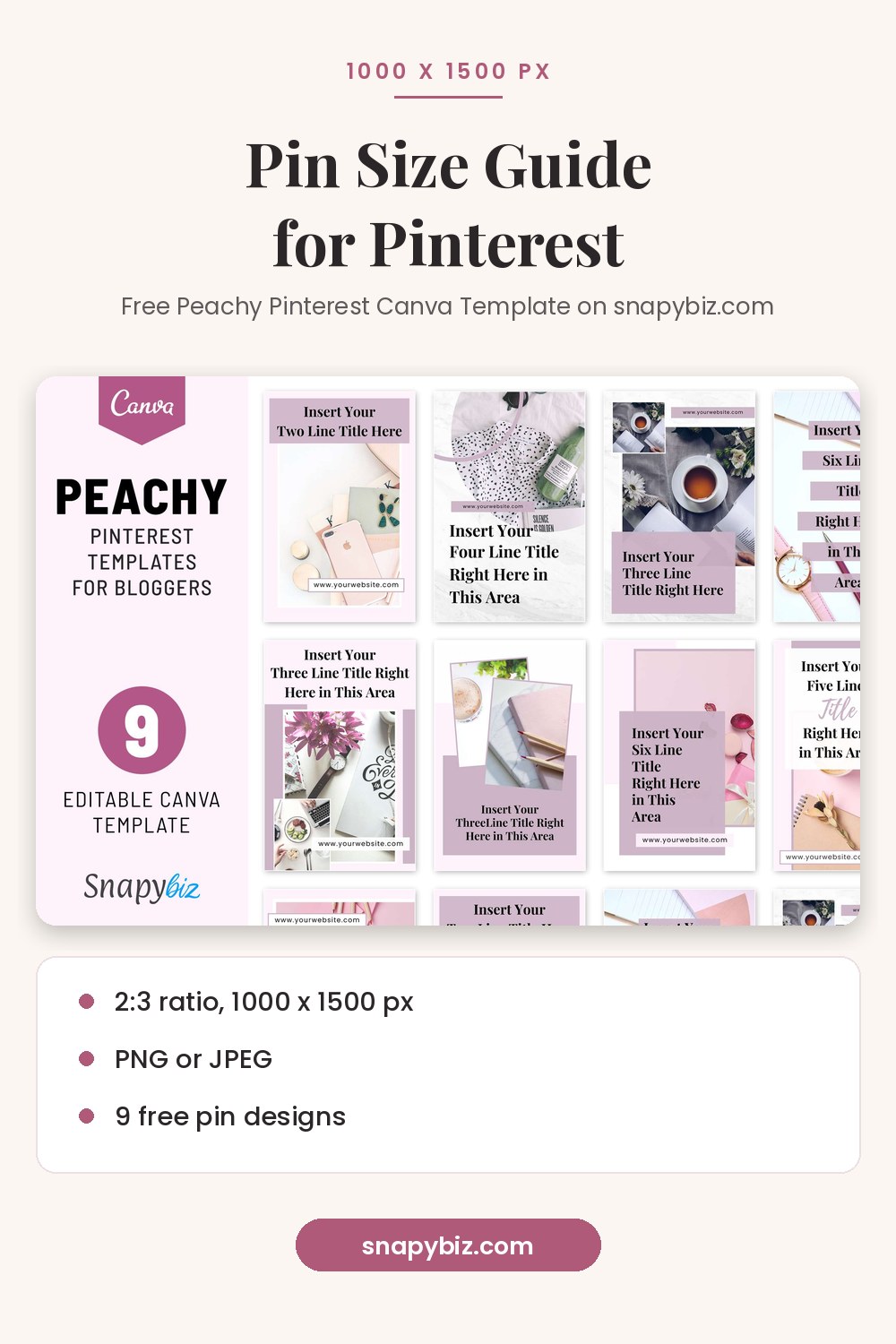
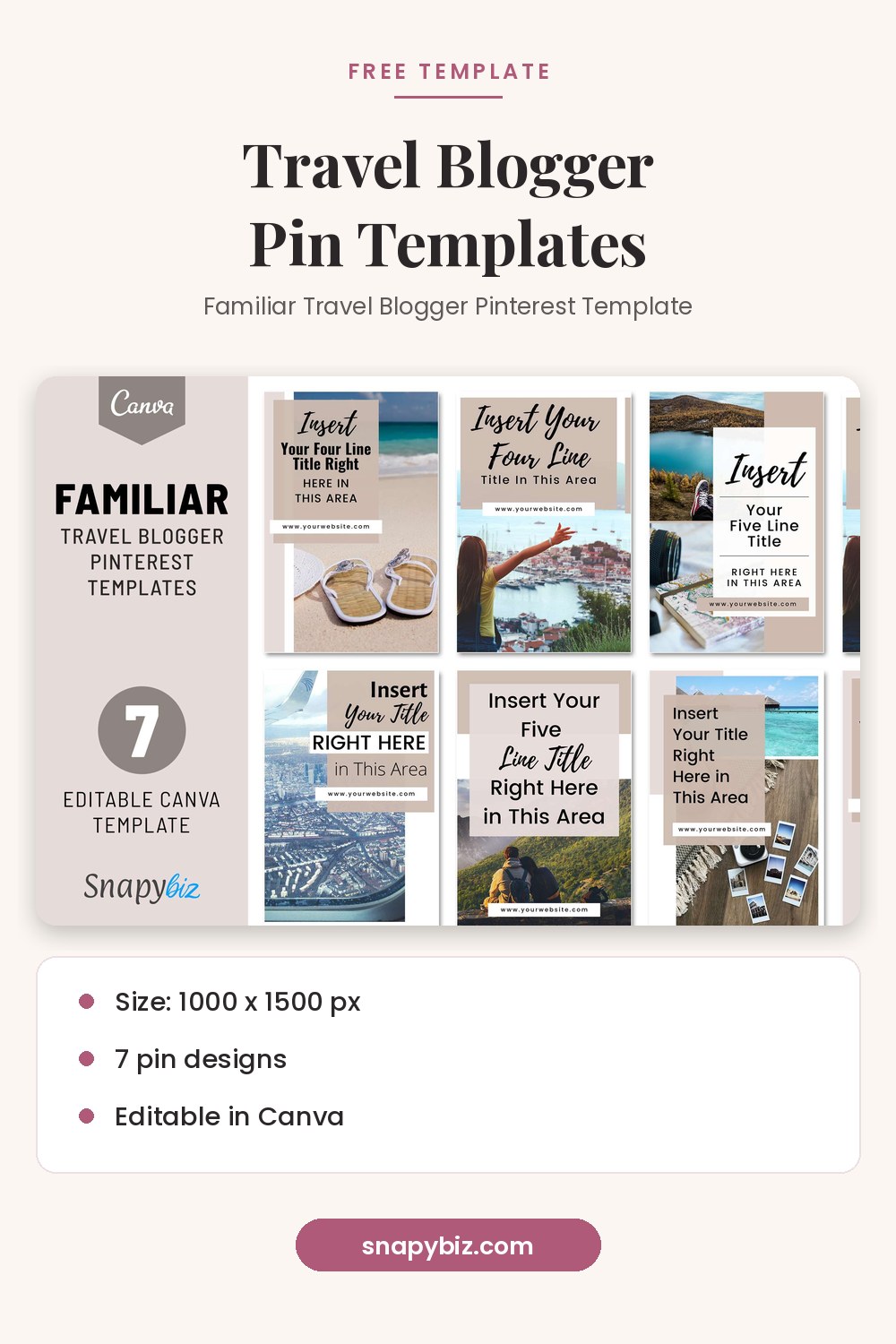
These SnapyBiz Canva templates are sized at 1000 x 1500 pixels.
| Template | What you get | Price on Oct 21, 2026 |
|---|---|---|
| Peachy Pinterest Canva Template For Bloggers | 9 pin designs | $0.00 |
| Familiar Travel Blogger Pinterest Template | 7 pin designs | Free, listed in Freebies |
| Pinterest Template Bundle: 15 Editable Canva Designs | 15 template products, static and video | $2.00 |
| 1150 Editable Pinterest Canva Pins Template Bundle | 1150+ pins | $6.00 |


Pinterest Template Bundle: 15 Editable Canva Designs
$2.00
Stop staring at a blank canvas.
Get this templateBrowse more niche designs, such as salons, bakeries, and real estate, on the Pinterest templates page.
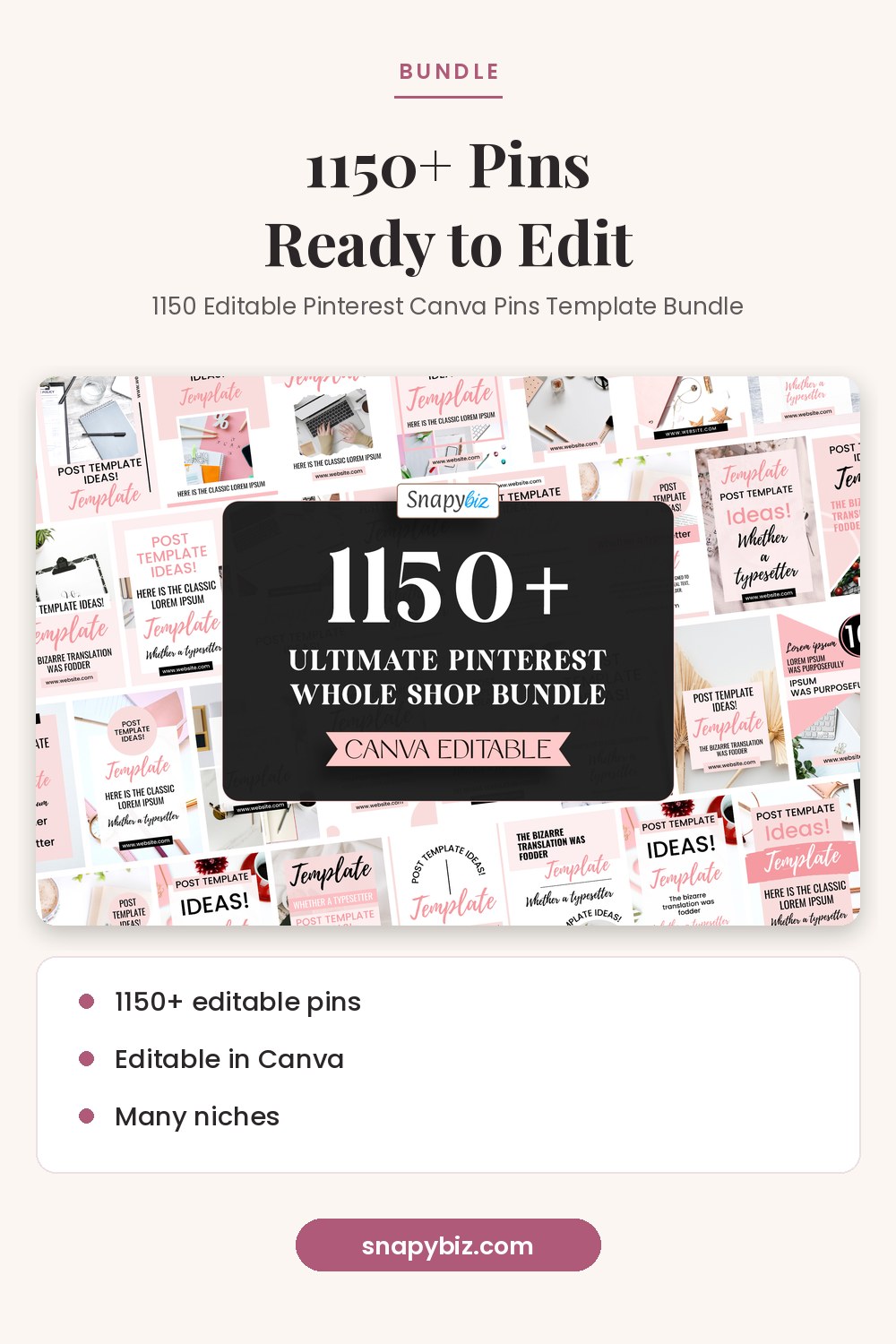

Pinterest Pin Template: 1150 Editable Canva Bundle
$6.00
Get 1150+ editable templates in this Pinterest pin template bundle for Pinterest posts, blog pins, and quote pins.
Get this templateHow do you make a pin in Canva at the right size?
- Open a SnapyBiz pin template link in your free Canva account. The size is already set.
- Swap the photo, headline, and colors for your own.
- Download it as a PNG or JPG. Canva’s file type guide lists both.
- Upload it to Pinterest, add a title, description, and link, and pick a board.
If you start from a blank design instead, set a custom size of 1000 by 1500 pixels.
Frequently asked questions
What size should a pin be in pixels?
1000 x 1500 pixels. Pinterest recommends this size for standard image pins.
Can I use a square image on Pinterest?
Yes, but it takes up less space in the feed than a 2:3 pin. A tall 2:3 pin is the safer choice.
What happens if my pin is too tall?
Pinterest says pins taller than 2:3 might get cut off in feeds. Keep key text out of the bottom area.
Should I use PNG or JPEG?
Both are accepted. PNG keeps text sharp. JPEG files are often smaller. Pick one and keep the file under 20 MB.
Are the SnapyBiz pin templates the right size?
Yes. The free Peachy and Travel Blogger sets list 1000 x 1500 as their size.
Summary
Use 1000 x 1500 pixels at a 2:3 ratio for standard pins. Keep files under 20 MB, titles under 40 characters where you can, and key text away from the bottom. Start with a free SnapyBiz template so the size is already right.
References
- Pinterest Help Center. Pinterest product specs.
- Canva Help Center. Choose the right download file type.