Quick answer: Open the template link from your download, sign in to Canva, and choose the option to use the template. That gives you your own copy. Double click any text to type over it, drag your photos onto the frames, click an element and use the color tile to change colors, then go to Share, then Download, and pick PDF Print for paper or PNG for screens.
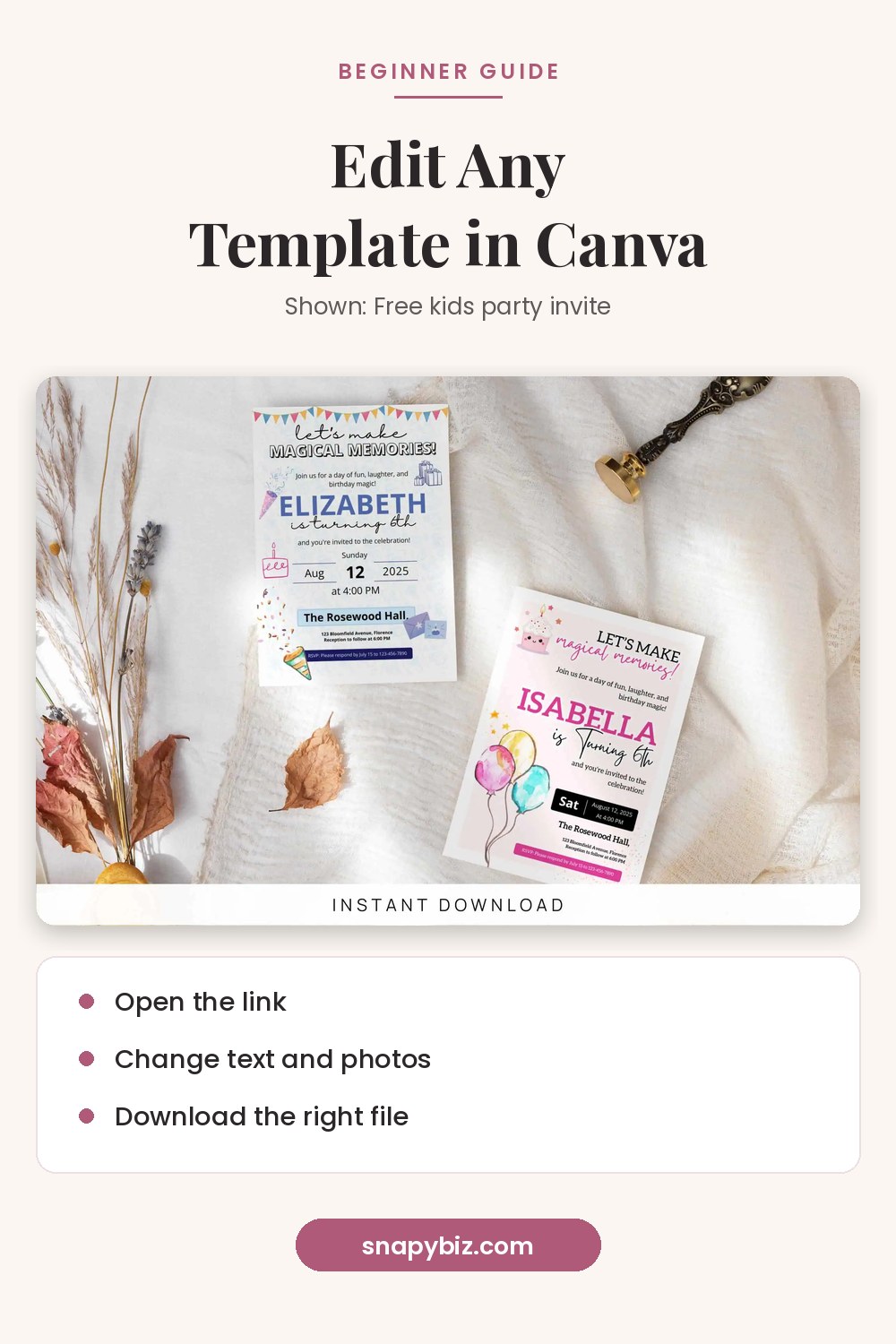
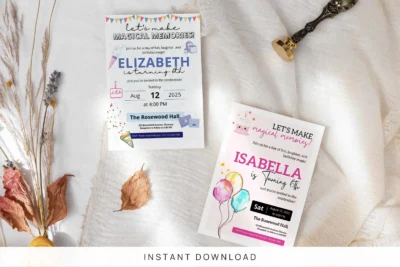
Free Birthday Invitation For Kids
Free
Free Birthday Invitation For Kids template with cute editable party invite designs for boys, girls, toddlers, and baby birthday celebrations.
Get this templateNew to Canva? This guide walks through every step, from the link in your download to the file you print or post. You can do all of it with a free Canva account.
What do you need before you start?
- The template link (SnapyBiz includes it in the PDF you download after checkout)
- A free Canva account
- Your text, such as names, dates, prices or contact details
- Your photos and logo, saved on your phone or computer
- A computer is easiest, but the Canva app works too
Step 1: How do you open the template link?
Open the PDF from your download and click the link inside. Canva will show a preview of the design with a button to use it as a template. Click it and sign in or sign up.
Canva’s template link guide says that anyone with a template link can view and use it as a template. Your copy is saved to your own account, so the seller’s design stays the same and you can come back to yours any time.
Tip: Rename your copy right away, such as “Mia birthday invite 2026,” so it is easy to find later.
Step 2: How do you change the text?
- Double click the text box you want to change.
- Delete the sample words and type your own.
- Click outside the box to finish.
Canva’s text guide shows these steps and how to duplicate a text box when you need another line.
Keep the look. Type over the sample words instead of deleting the whole box. That way the font, size and spacing stay the same.
Step 3: How do you change fonts and sizes?
Select the text, then use the toolbar. Canva’s format text guide explains that you can:
- Click the font name to pick a new font
- Change the font size with the plus and minus buttons
- Make text bold, italic or underlined
- Change alignment (left, center, right)
- Adjust letter and line spacing under Advanced Settings
Tip: Stick to the two fonts the designer used. Mixing many fonts makes a design look messy.

Step 4: How do you swap photos?
Most templates use frames: shapes that hold a photo. To put your own photo in:
- Upload your photo first. Canva’s upload guide says to open the Uploads tab and click Upload files. You can also drag files from your computer onto that tab.
- Drag your photo over the frame until it snaps into place.
- Double click the photo to move it or resize it inside the frame, then click Done.
Canva’s frames guide covers each step. The upload guide also notes that Canva Free includes up to 5 GB of media storage, which is plenty for most people.
Photo tips:
- Use bright, sharp photos.
- Pick a photo with the same shape as the frame (tall photo for a tall frame).
- Keep faces away from the edges so they don’t get cut off.
Step 5: How do you change colors?
- Click the element, such as a shape, background or text.
- Click the color tile on the toolbar.
- Pick a new color, or use the eyedropper to match a color from your logo or photo.
Canva’s color guide adds that you can change a color on the current page or on all pages at once. If no color tile shows up, that element’s colors can’t be changed.
Tip: Use your brand colors. If you don’t have any, keep the template’s colors. The designer picked them to work well together.
Step 6: How do you change the same word everywhere?
Got a name or date that shows up on many pages? Use Find and replace. Canva’s find and replace guide says to open the File menu and pick Find and replace text, or press Ctrl + F (Windows) or Command + F (Mac). Type the old word, type the new one, then pick Replace or Replace all.
Note that text inside locked elements won’t change. Click the lock icon to free them first.
Step 7: How do you add or remove elements?
- Remove: click the element and press Delete.
- Add: open Elements in the side panel and search for what you need, such as “star” or “arrow.”
- Move: drag it. Pink guide lines help you line things up.
- Copy: select it and press Ctrl + C, then Ctrl + V (Command on a Mac).
Step 8: How do you check your work?
Before you download, zoom out and look at the whole page. Then check:
- Spelling of names, dates and places
- Phone numbers and web links
- Text that sits too close to the edge
- Photos that look blurry or cut off
- Any sample text you forgot to replace
Read it out loud once. You’ll catch typos your eyes skip.
Step 9: Which file should you download?
Go to Share, then Download. Canva’s file type guide explains the main options:
| You want to | Pick |
|---|---|
| Print at home or at a shop | PDF Print (300 dpi, with bleed and crop mark options) |
| Email a light file | PDF Standard (96 dpi) |
| Post on social media | PNG or JPG |
| Send a video or animation | MP4 or GIF |
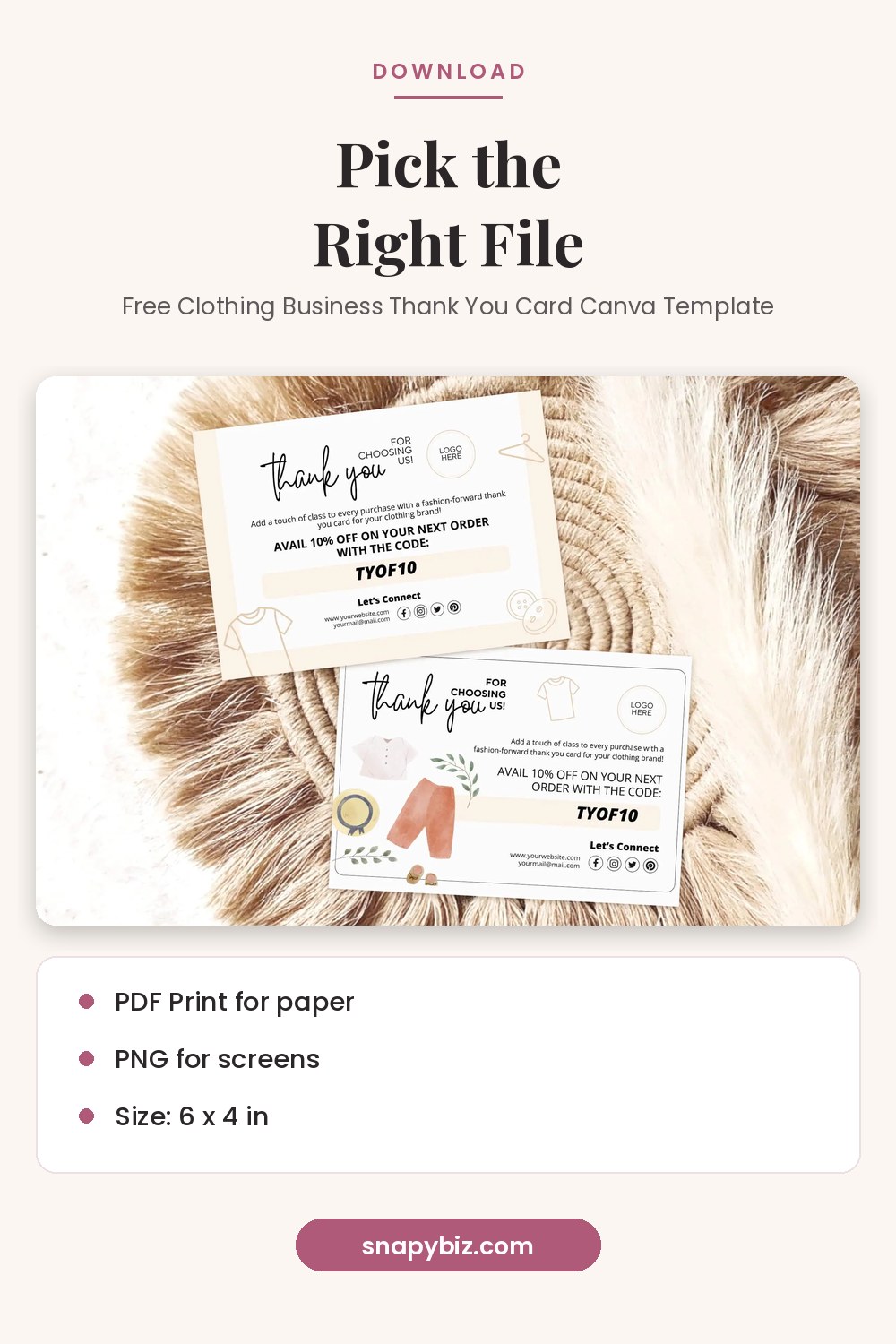
Free Clothing Business Thank You Card Canva Template
Free
Free Clothing Business Thank You Card Canva Template for fashion boutiques, online clothing shops, customer thank you inserts, and branding cards.
Get this templateCommon problems and fixes
| Problem | Fix |
|---|---|
| Canva asks me to pay before download | The design has a Pro element. Swap it for a free one, pay for it, or upgrade. |
| I can’t click a text box | It may be locked. Look for the lock icon and click it to turn the lock off. |
| My photo won’t fit the frame | Double click it and drag the corner handles. |
| Text changed font | You deleted the box and made a new one. Undo with Ctrl + Z. |
| I can’t find my design | Look in Projects on the Canva home page. |
Free templates to practice on
The best way to learn is to try it. These SnapyBiz templates were free on October 21, 2026:
| Template | Good for practicing |
|---|---|
| Free kids party invite | Text, colors |
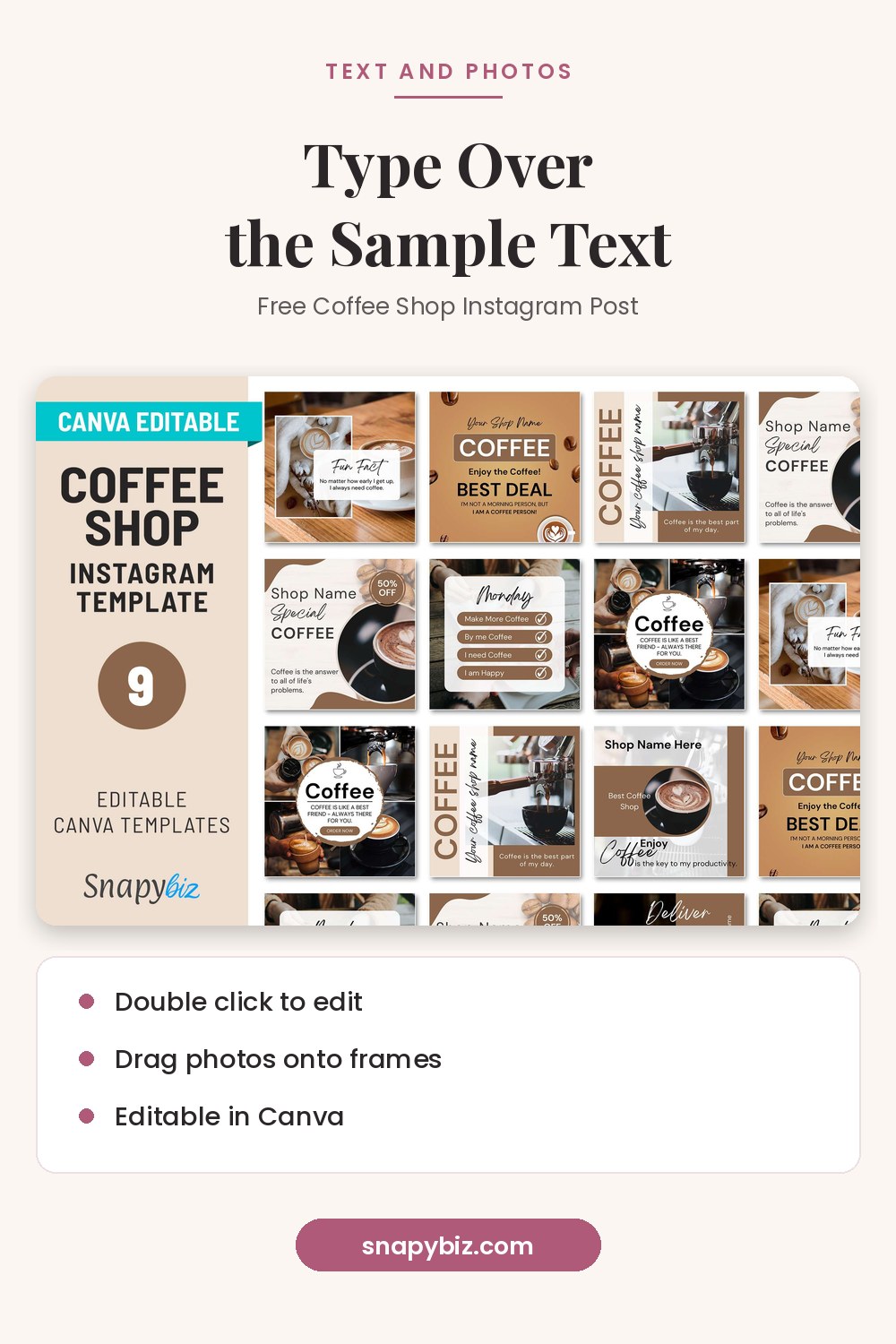
| Free coffee shop posts | Swapping photos in frames |
| Free clothing shop thank you card | Adding a logo |

Free Birthday Invitation For Kids
Free
Free Birthday Invitation For Kids template with cute editable party invite designs for boys, girls, toddlers, and baby birthday celebrations.
Get this template

Free Clothing Business Thank You Card Canva Template
Free
Free Clothing Business Thank You Card Canva Template for fashion boutiques, online clothing shops, customer thank you inserts, and branding cards.
Get this templateYou can also browse all the free designs on the SnapyBiz Freebies page.
Frequently asked questions
Do I need Canva Pro to edit a template?
No. A free Canva account is enough to edit SnapyBiz templates. If a design has a Pro element, Canva’s content license says free users pay for that element’s license, so swap it for a free one if you’d rather not.
Will my changes affect the original template?
No. Using a template link gives you your own copy, so the original stays the same.
Can I edit a Canva template on my phone?
Yes, with the Canva app. A computer is easier for small details like spacing.
Can I reuse the template for another event?
Yes. Make a copy of your design in Canva first, then edit the copy.
Why does my printed design have white edges?
Turn on Show print bleed under File, then Settings, stretch the background to the edge, and download as PDF Print with crop marks.
Summary
Open the link, use the template to make your copy, then change text, photos and colors one step at a time. Use Find and replace for repeated words, check everything twice, and pick PDF Print for paper or PNG for screens. Start with a free SnapyBiz design to practice.
References
- Canva Help Center. Share your design as a template link.
- Canva Help Center. Add and edit text.
- Canva Help Center. Format text.
- Canva Help Center. Upload media from your device.
- Canva Help Center. Use frames and crop images into a shape.
- Canva Help Center. Change element colors.
- Canva Help Center. Find and replace text in your design.
- Canva Help Center. Choose the right download file type.
- Canva. Content License Agreement.