Quick answer: Download your design from Canva as a PDF Print file, which Canva makes at 300 dpi. Load card stock that your printer can handle, pick the card stock or heavy paper setting in the print window, choose Actual size so nothing gets shrunk, print one test sheet on plain paper, then print the rest and trim along the crop marks.
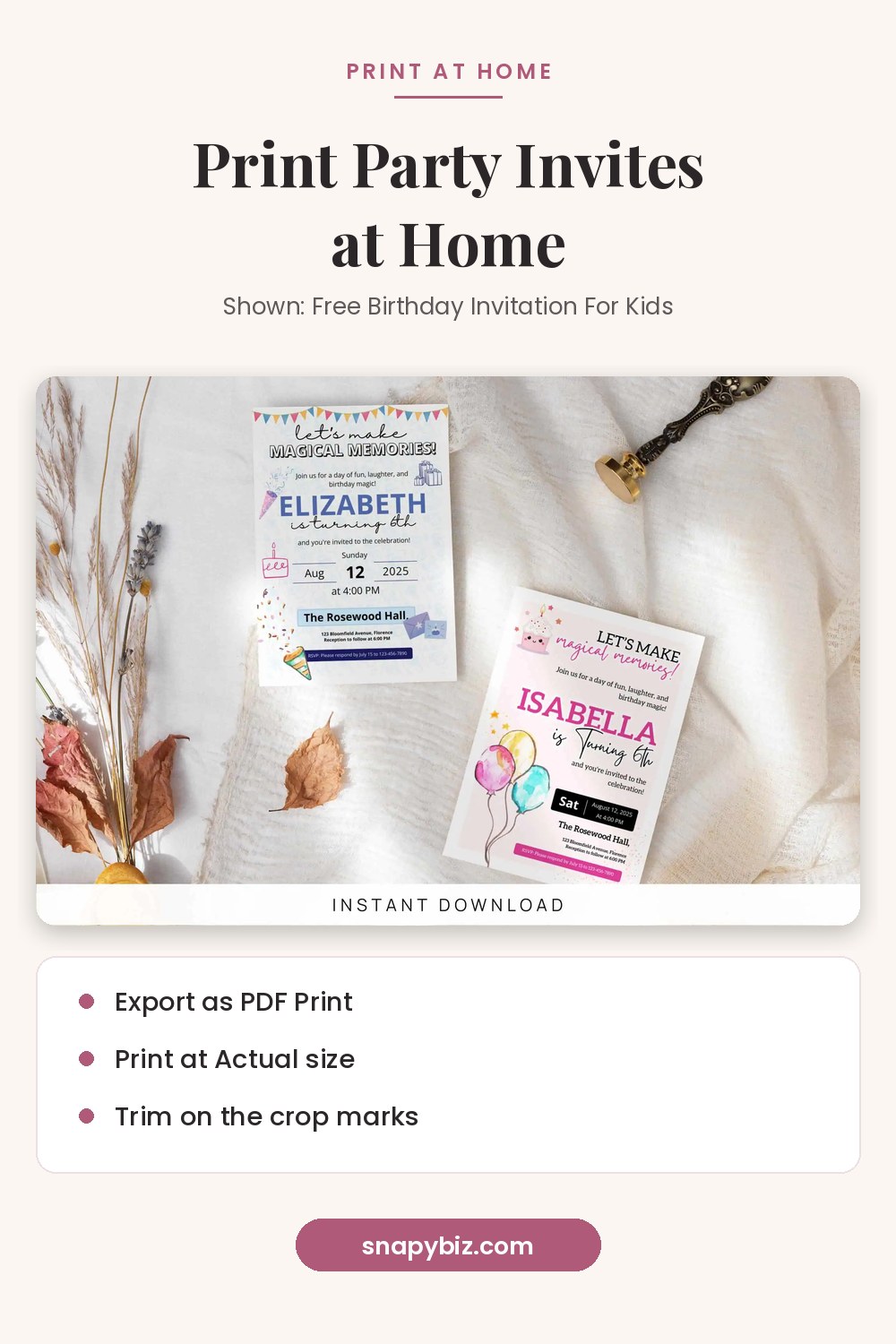
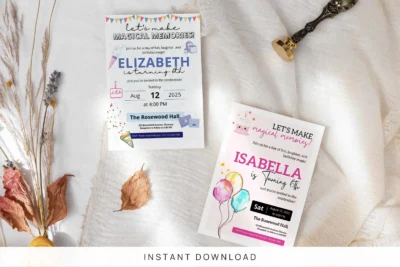
Free Birthday Invitation For Kids
Free
Free Birthday Invitation For Kids template with cute editable party invite designs for boys, girls, toddlers, and baby birthday celebrations.
Get this templatePrinting your own invites saves time and lets you fix a typo at 10 p.m. The steps below work for most home inkjet and laser printers. Your printer’s menus may use different names, so keep its manual close.
What do you need?
| Item | Why it matters |
|---|---|
| A print ready file | A PDF Print file keeps text sharp |
| Card stock or heavy matte paper | Feels like a real card and holds up in the mail |
| Plain paper | For a cheap test print |
| A paper trimmer or ruler and craft knife | Gives straight, clean edges |
| Envelopes | A7 envelopes are made for 5 x 7 cards |
What paper should you use?
Card stock is sold by weight, such as 65 lb, 80 lb and 110 lb. Heavier paper feels nicer but is harder for some printers to feed. Look up the heaviest paper your printer supports before you buy a big pack.
A few tips:
- Matte paper hides fingerprints and is easy to write on.
- Glossy photo paper makes colors pop but can smudge with some pens.
- White or cream paper keeps colors true. Colored paper will tint your design.
- Buy one extra pack of plain paper for tests.
How do you get a print ready file from Canva?
- Open your invitation template in Canva and add your party details.
- Turn on the bleed guide. Canva’s margins and bleed guide says to go to File, then Settings, then Show print bleed.
- Stretch your background so it covers the bleed area. Keep text well inside the edges.
- Go to Share, then Download, and pick PDF Print. Canva’s file type guide says this file is 300 dpi and has options for bleed, crop marks and color profile.
- Tick Crop marks and bleed if you plan to trim the cards yourself.
Crop marks only show in the downloaded PDF, not in the Canva editor.
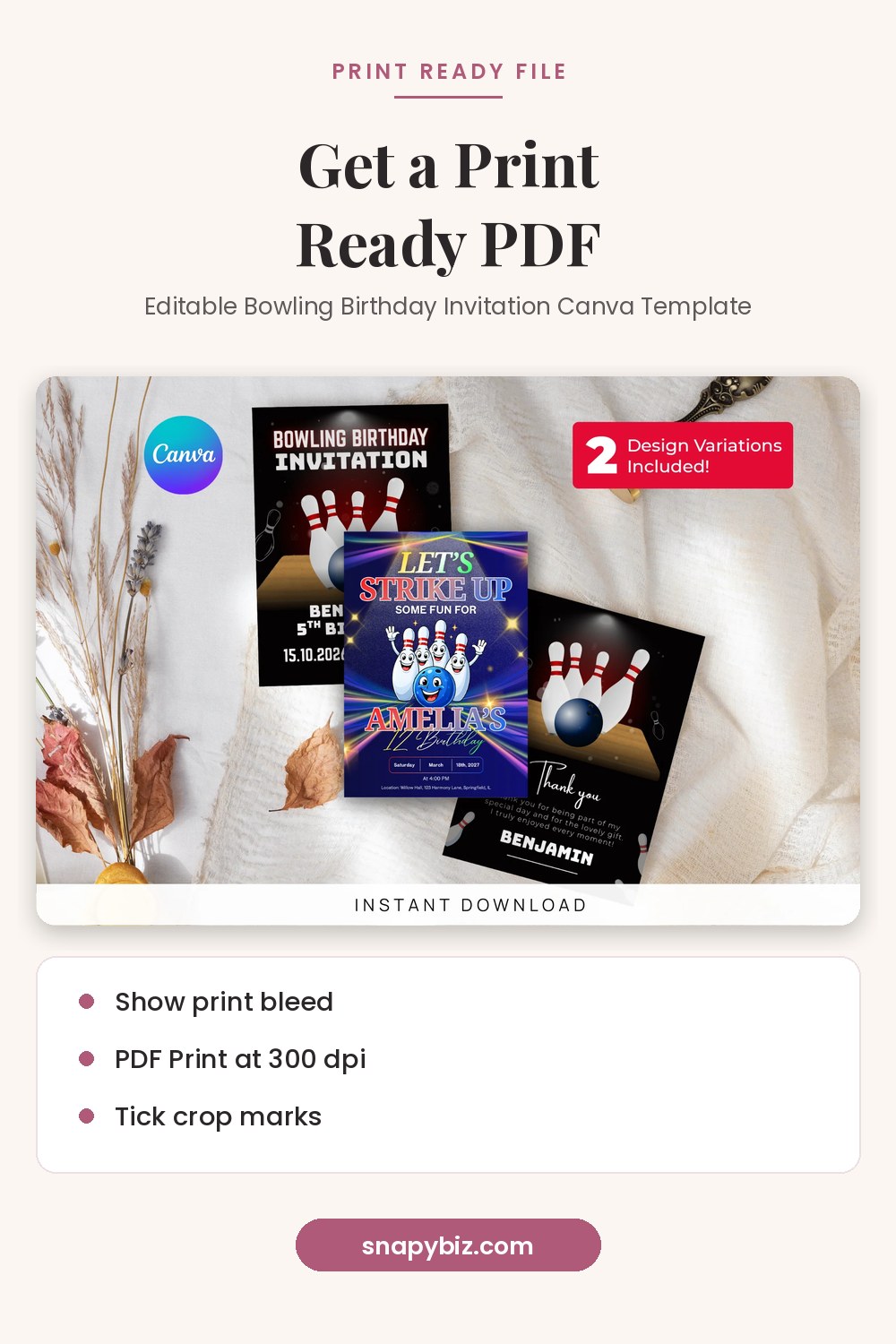
Editable Bowling Birthday Invitation Canva Template
$4.00
Edit it in Canva, then download and print.
Get this templateCan you fit two invitations on one sheet?
Yes. Two 5 x 7 inch cards fit on one US Letter sheet (8.5 x 11 inches) when you stack them top to bottom. In Canva, make a new Letter size design, then paste two copies of your invite. Leave a small gap between them for trimming. This saves paper and ink.
Bigger 6 x 8 or square designs may need one sheet each. Check the math first: the cards must fit inside 8.5 x 11 inches with room left for the printer’s margin.
Which printer settings should you choose?
Open the PDF and press Ctrl + P (Windows) or Command + P (Mac). Then check these settings:
| Setting | What to pick |
|---|---|
| Paper size | The size you loaded, such as Letter |
| Paper type | Card stock, heavy paper or matte, based on your paper |
| Quality | High or Best |
| Scale | Actual size, or 100% |
| Paper source | The tray or slot made for thick paper |
Scale matters most. Adobe’s page size guide explains that Fit shrinks or enlarges a page to fit the printable area, while Actual size prints without scaling. Pick Actual size so a 5 x 7 card stays 5 x 7.
Paper type tells the printer how to feed and how much ink to use. For example, Epson’s paper type chart for its ET 8500 series lists “Card Stock 1” for card stock from 0.024 to 0.031 inch thick and “Card Stock 2” for 0.032 to 0.051 inch. Your printer may use other names.
How do you print on both sides?
If your invite has a back, such as a map or RSVP card, check if your printer can print on both sides. Adobe’s basic printing guide notes that the printer driver, not Acrobat, controls this option, so it may live under printer properties.
If your printer can’t do it on its own:
- Print page one on all sheets.
- Let the ink dry.
- Mark the top of one sheet with a pencil dot.
- Flip and reload as your manual shows, then print page two on one test sheet.
- Check that the back lines up before you print the rest.
Why print a test sheet first?
A test on plain paper catches problems before you use card stock. Hold the test up to a light or cut it out. Check for:
- Typos in names, dates and addresses
- Text too close to the edge
- Colors that look too dark
- A card that came out smaller than planned (scale was not set to Actual size)
How do you trim invitations neatly?
Use a paper trimmer if you have one. Line the blade up with the crop marks, not the edge of the art. If you use a craft knife, cut on a mat with a metal ruler and make two or three light passes instead of one hard cut. Cut all the long edges first, then the short ones.
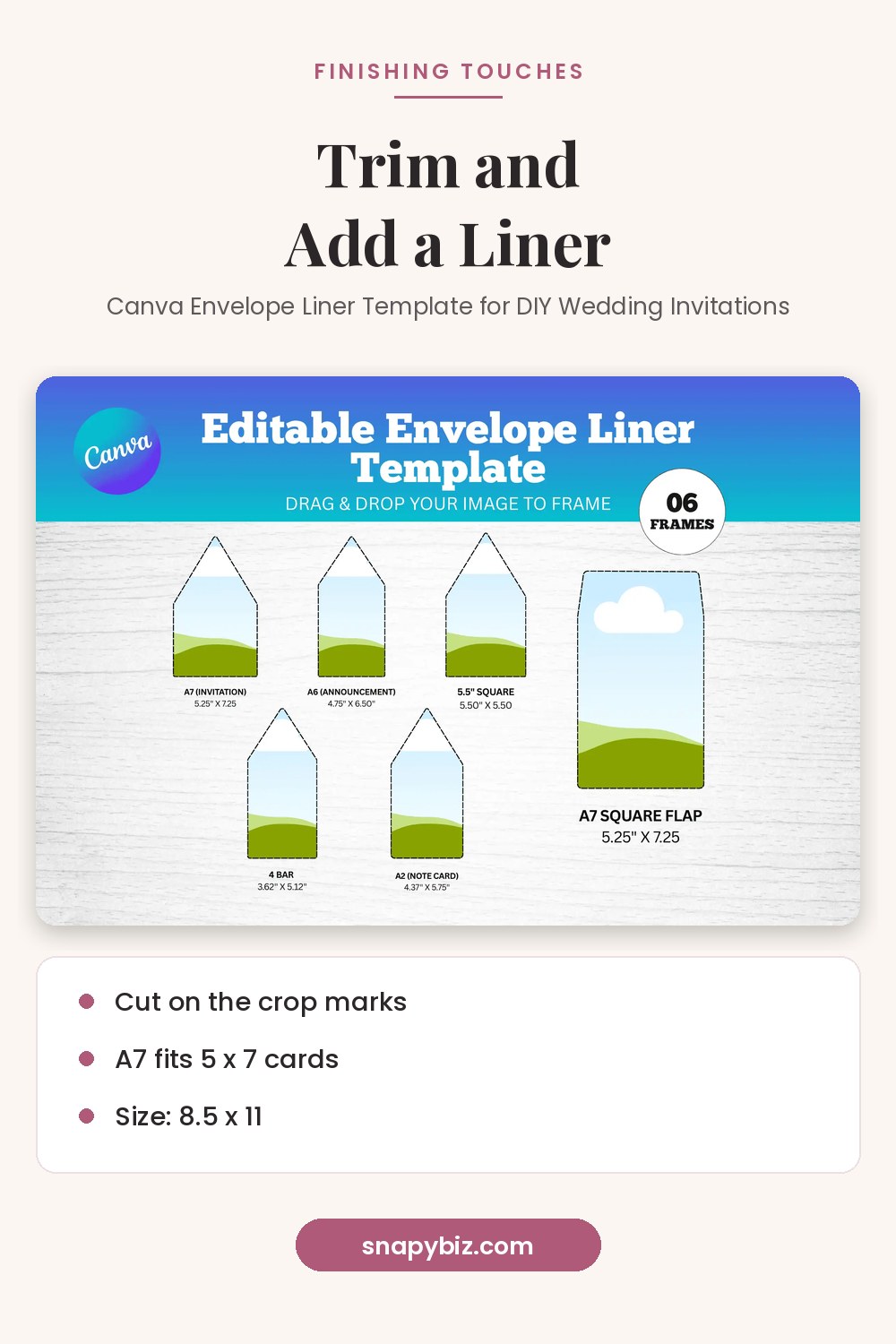

Canva Envelope Liner Template for DIY Wedding Invitations
$2.00
Canva Envelope Liner Template for DIY Wedding Invitations to create custom envelope inserts, elegant stationery, and printable wedding invitation details.
Get this templateCommon problems and fixes
| Problem | Likely fix |
|---|---|
| White edges after trimming | Turn on bleed in Canva and stretch the background |
| Card prints too small | Set scale to Actual size or 100% |
| Ink smears | Pick a heavier paper type setting and let sheets dry |
| Paper jams | Feed one sheet at a time through the thick paper slot |
| Colors look dull | Use bright white paper and High quality |
| Blurry photos | Use a PDF Print file, not a screenshot |
Templates that print well at home
| Template | Size | Price on Oct 21, 2026 |
|---|---|---|
| Free Birthday Invitation For Kids | 5 x 7 inches | $0.00 |
| Printable Pink Bow First Birthday Invitation Template | Editable in Canva | $1.50 |
| Editable Bowling Birthday Invitation Canva Template | 5 x 7 inches, 3 designs | $4.00 |
| Envelope Liner Template | A7, A6, A2, 5.5 square and 4 Bar, with a US Letter print sheet | $2.00 |

Free Birthday Invitation For Kids
Free
Free Birthday Invitation For Kids template with cute editable party invite designs for boys, girls, toddlers, and baby birthday celebrations.
Get this template
Printable Pink Bow First Birthday Invitation Template
$1.50
Create a Pink Bow First Birthday Invitation Template with this editable Canva template.
Get this template
Editable Bowling Birthday Invitation Canva Template
$4.00
Edit it in Canva, then download and print.
Get this templateFrequently asked questions
What paper is best for home printed invitations?
Matte card stock in white or cream is a safe choice. Check your printer’s manual for the heaviest weight it can feed.
Why did my invitation print smaller than 5 x 7?
The print window was likely set to Fit. Change it to Actual size or 100%.
Should I download a PNG or a PDF?
Use PDF Print. Canva makes it at 300 dpi with bleed and crop mark options.
Can a regular inkjet printer print on card stock?
Many can, but limits vary. Use the thick paper slot or tray, pick the card stock setting, and feed one sheet at a time if it jams.
Is it cheaper to print at home?
For small batches it often is, since you skip shipping and wait time. For large batches, compare your ink and paper cost with a local print shop.
Summary
Export a PDF Print file with bleed, load card stock, pick the card stock setting, print at Actual size, test on plain paper, then trim on the crop marks. Start with a free or low cost SnapyBiz invitation and you can have cards ready the same day.
References
- Canva Help Center. Use margins, bleed, rulers, and crop marks.
- Canva Help Center. Choose the right download file type.
- Adobe Help. Adjust page size for printing.
- Adobe Help. Basic PDF printing tasks.
- Epson. Paper or media type settings, ET 8500 series.